
How to make an AI crying video
Start with a portrait, choose the mood and review the finished clip. This guide uses the real rain example shown alongside the steps.
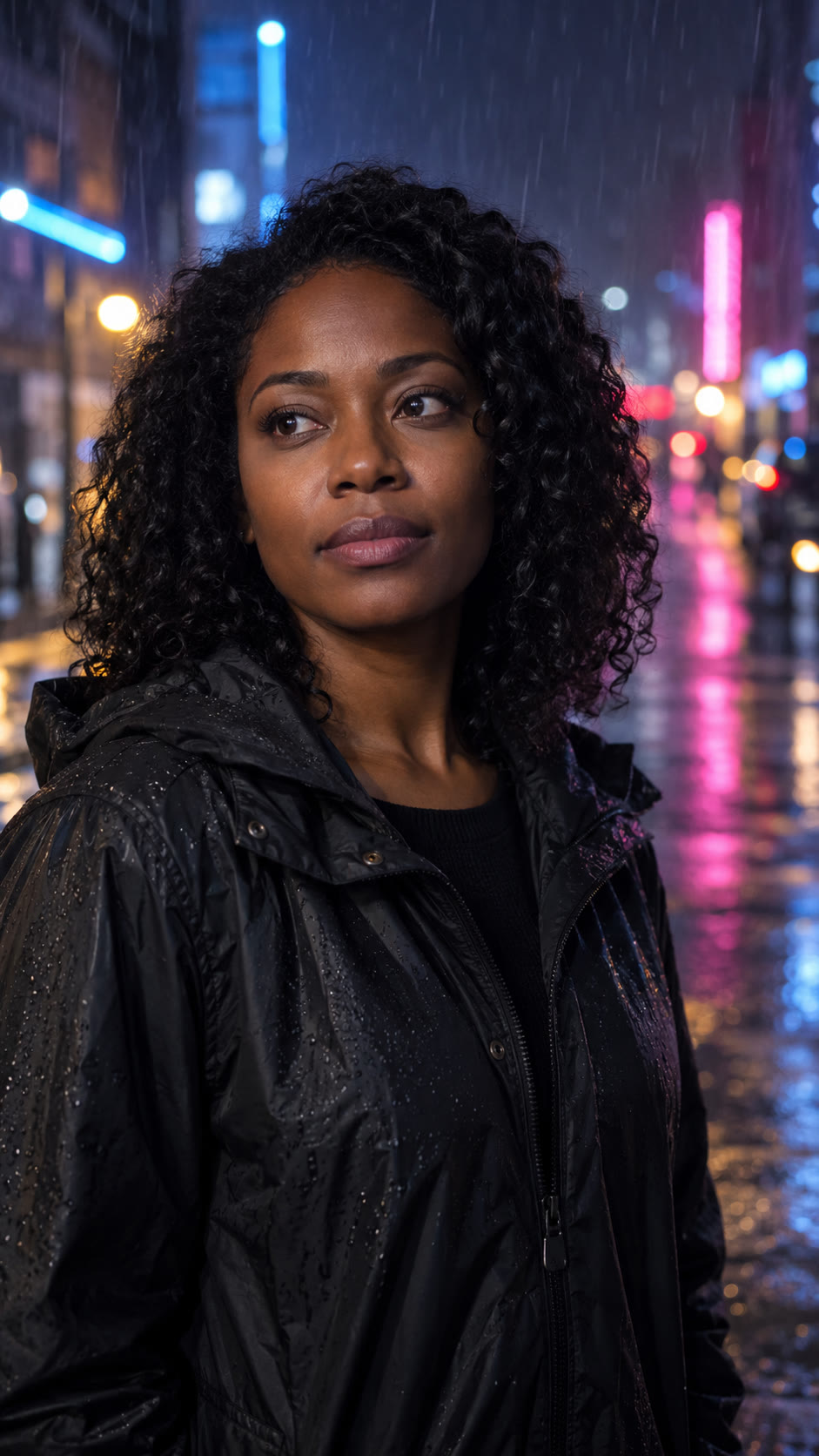 Original photo
- 01
Choose one clear portrait
Use a photo of one adult with visible eyes and mouth. You need permission to use the image. JPG, PNG and WebP files under 8 MB are supported.
- 02
Crop for a vertical video
Keep the face inside the 9:16 crop. Leave room around the eyes and chin; a tight or blurry face gives the model less information to work with.
- 03
Pick a scene and emotion
Choose night street, window light or neon rain. Holding back tears requests subtle emotion; Let it all out requests a more expressive take. Templates can preselect both controls.
- 04
Generate, review and save
Sign in with Google and check the credit cost before generating. The finished 10-second MP4 appears in My videos. Review it before downloading or sharing; AI results can vary.
Get a clearer result
The photo will not upload
Check the file type and size. Use a still image rather than an animated WebP. If decoding fails, export a fresh JPG from your photo editor and try that copy.
The face or hands look different
AI animation can alter fine details. Try a more clearly lit portrait or a less dramatic emotion. These changes are suggestions, not guaranteed fixes; each new generation uses credits.
The job is taking time
Check the existing task in My videos. A processing state is different from failure. Repeatedly creating new requests can make separate paid jobs, so let the existing request finish.
I need credits or refund help
A task marked failed returns its app credits. For order or refund questions, contact support@ai-crying.com with the task or order reference. The terms explain unused-credit refunds and cancellation.
Finish the idea with a free tool
The prompt builder lets you copy the scene directions without generating a video. The meme maker adds captions to a local picture and downloads a still PNG. Neither free tool spends video credits.